Screenshots and menu names follow JCarTools 2.0.1 beta. Menu placement may differ on narrower screens; use the section names to find each setting.
What is happening to the navigation?
A GPS problem rarely begins as a complete failure. Most drivers first notice small issues that become especially frustrating in an unfamiliar area:
- Yandex Navigator cannot find the car after startup or keeps searching for satellites;
- the marker lags behind the vehicle, jumps between streets or moves in steps;
- the map places the car on a nearby road;
- the position disappears more often under a roof, between tall buildings or behind a heated windscreen;
- navigation takes too long to recover after leaving an area with interference.
JCarTools gives you another option in these cases: use coordinates from a phone or a dedicated USB receiver instead of depending only on the built-in unit.
What JCarTools means by GPS spoofing
This feature does not create an imaginary route. JCarTools receives real coordinates from the selected external source and supplies them to the Android location system on the head unit. Yandex Maps, Navigator, Waze and other apps can then use those coordinates as their normal location.
It is useful when the factory receiver takes too long to acquire satellites, loses its fix behind a heated windscreen, or the head unit is installed where satellite reception is poor.
Which vehicles can use this setting?
The feature appears in supported JCarTools profiles. Available sources and exact behavior depend on the vehicle, head unit and selected profile. The families below help users find the relevant guide; they do not promise an identical feature set for every trim and firmware.
Choose the right location source
Android — convenient wireless use every day
JCTMobileClient sends the phone's coordinates over the shared JCarTools phone connection. Wi‑Fi is tried first, followed by Bluetooth when Wi‑Fi is unavailable.
iPhone — via GPS Server
The head unit joins the iPhone hotspot or the same Wi‑Fi network and connects to the address displayed by GPS Server on port 8887.
USB GPS — a dedicated in-car receiver
This is useful when you want an independent source that permanently stays in the vehicle. A compatible u-blox receiver should be configured once on a computer before use.
Quick choice: use Android or iPhone for a cable-free setup; use USB GPS for a dedicated, permanently installed receiver.
Will this help where GPS is jammed?
The honest answer is: not always. If the factory antenna is hidden behind trim, far from the windscreen or simply receives poorly, a phone near the glass or a well-positioned USB GNSS antenna can provide a more stable fix.
Strong interference affects satellite signals themselves, however. The built-in receiver, a phone and an external module may all be wrong in the same area. A separate receiver is not magic protection against jamming or signal spoofing; its practical advantage is better antenna placement and quicker recovery after you leave the affected area.
Open GPS spoofing settings
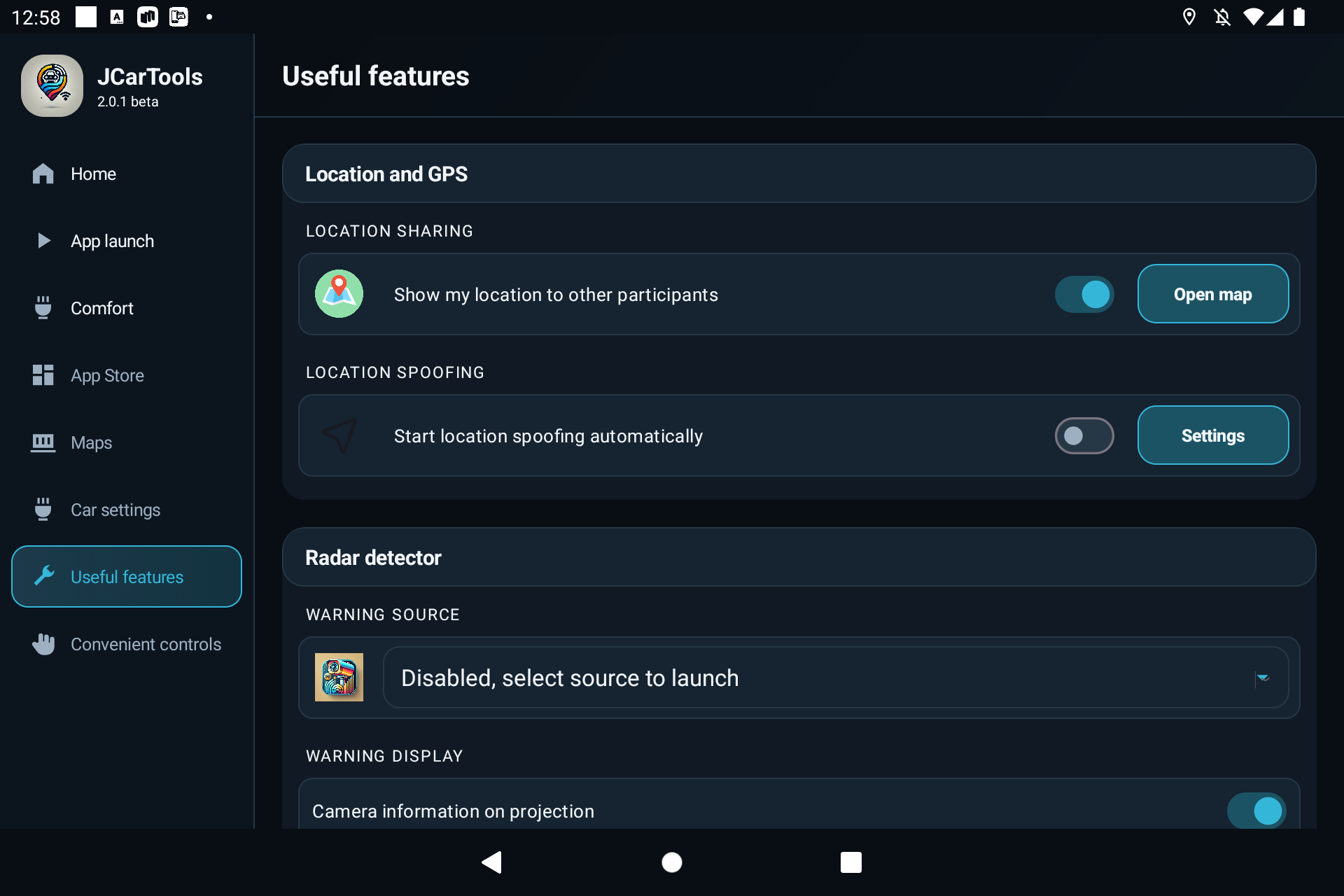
- Select Useful features in the JCarTools menu.
- Scroll to Location and GPS.
- Under Location spoofing, select Settings next to Start location spoofing automatically.
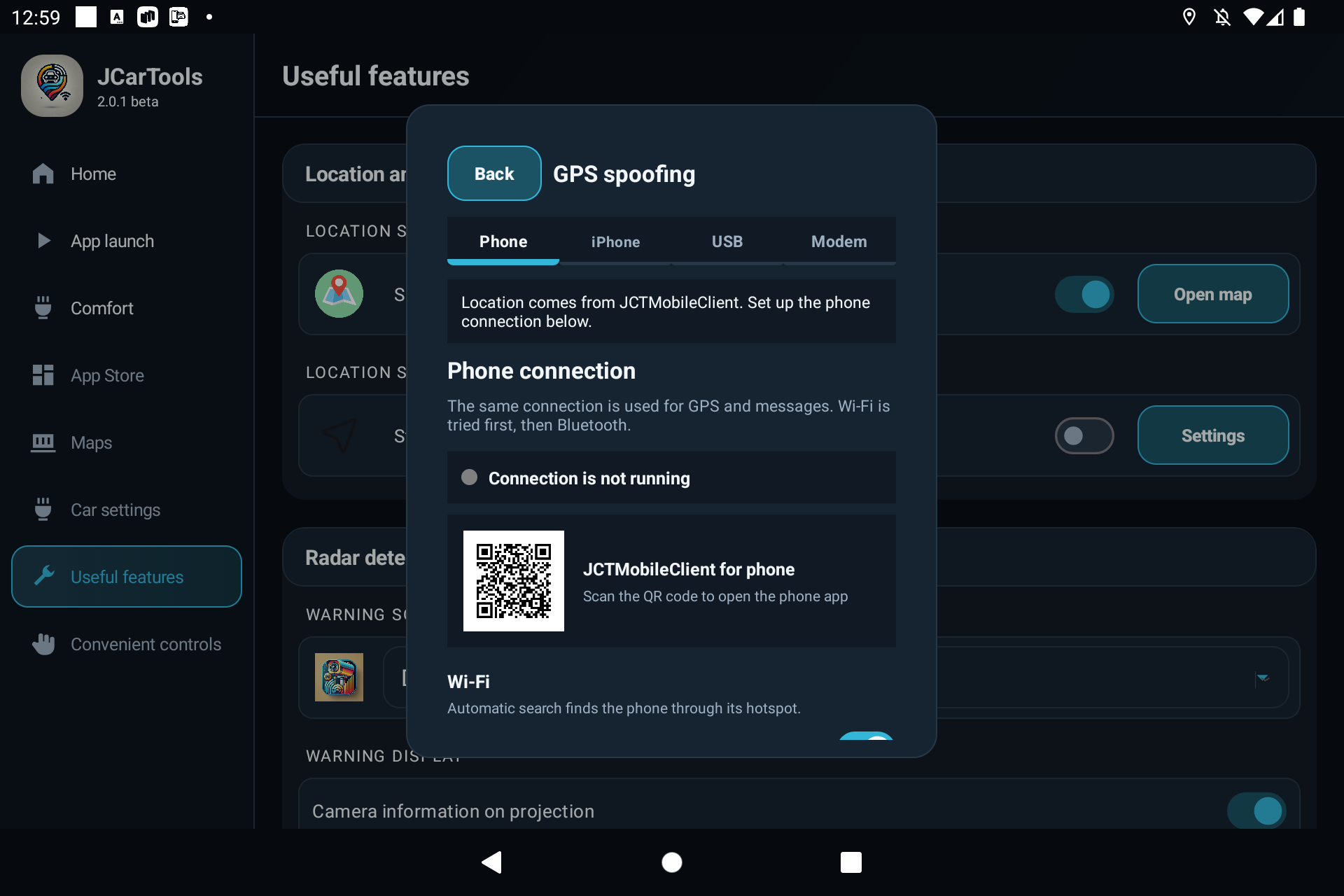
- Choose the Phone, iPhone or USB tab.
Quickly turn GPS spoofing on or off
Once the source has been configured, you do not need to reopen this settings screen every time. The shared JCarTools action list contains Toggle GPS spoofing. Assign it to a floating button, a multi-button sector, a voice command, a supported vehicle button, a screen gesture or an edge swipe.
For example: assign the action to a convenient gesture. Perform it once to start using coordinates from the selected phone or USB receiver; perform it again to stop spoofing and return navigation to the vehicle's system GPS.
Configure and test the source with Start first. The quick action then uses the saved source and its existing settings.
Method 1. Android and JCTMobileClient
JCarTools uses one phone connection for both GPS and messages. You only need to configure it once.
Step 1. Prepare the phone app
- On the Phone tab, scan the QR code and install JCTMobileClient.
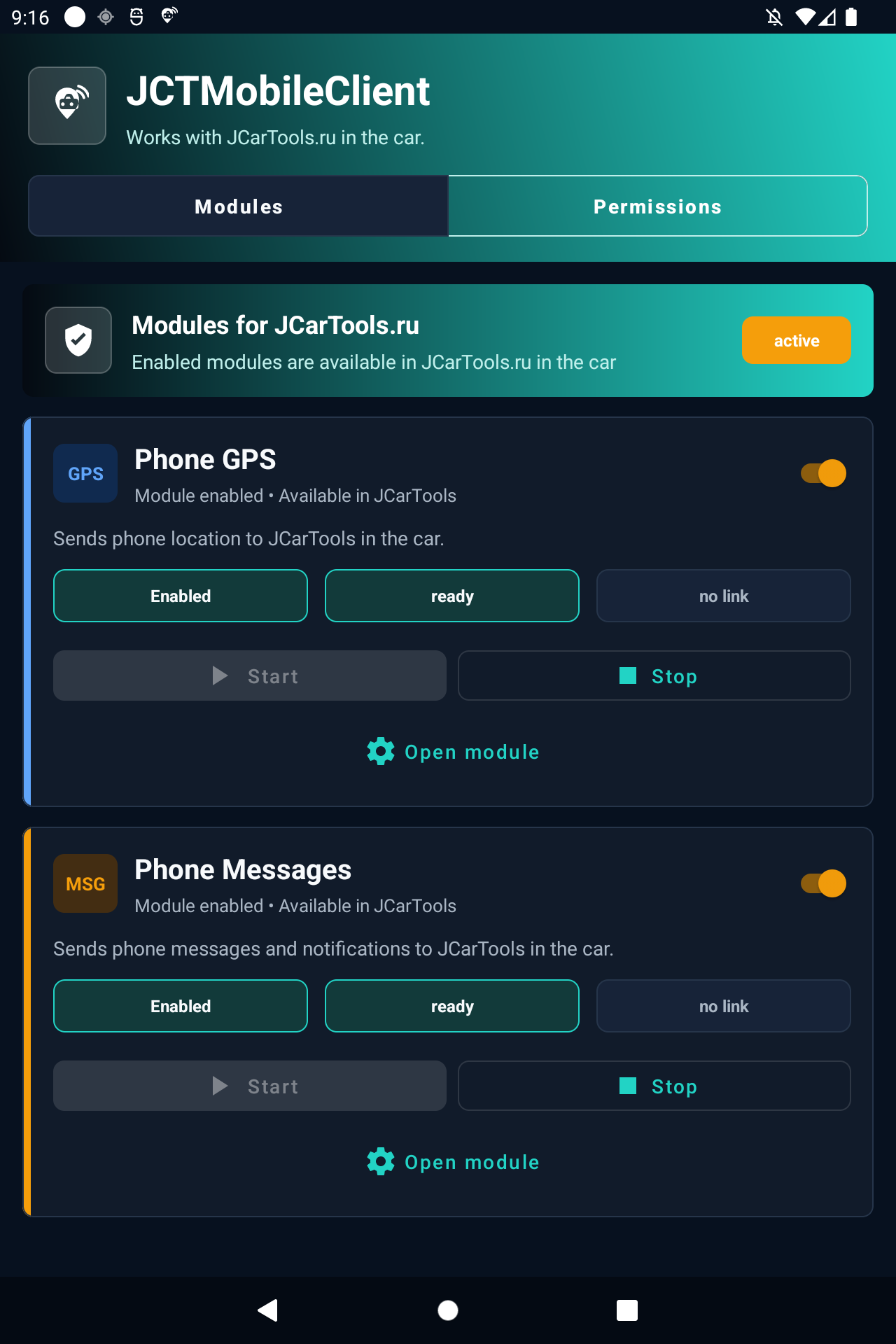
- Open the app and enable the Phone GPS module.
- Select Open module.
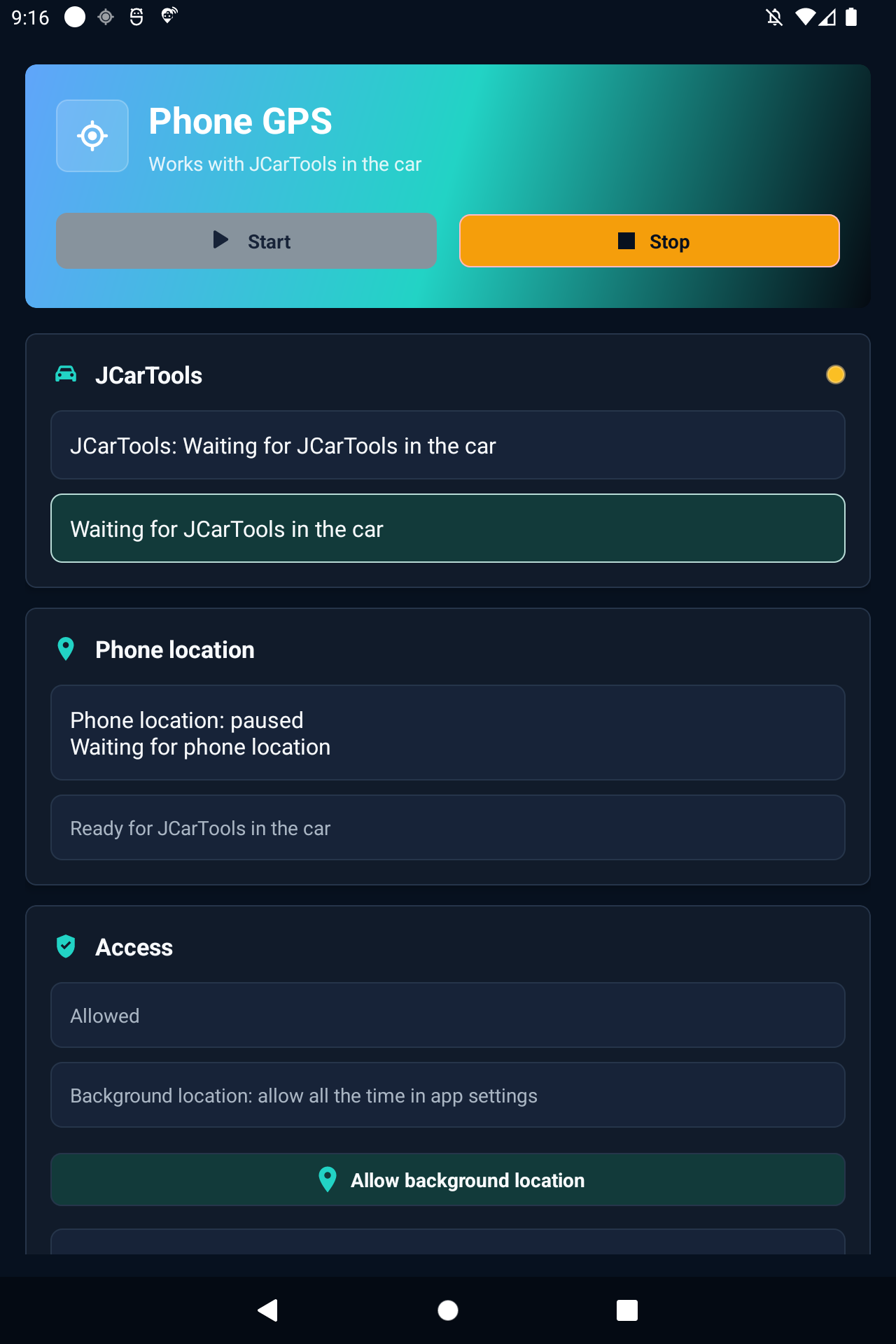
- Grant precise location access. To keep sending with the screen off, allow location all the time and permit background activity.
Step 2. Configure the car connection
- Connect the head unit to the phone's hotspot. Keep Find the phone automatically enabled.
- For Bluetooth fallback, pair the phone in the vehicle's Android settings first, then select it in JCarTools.
- Select Generate to create a nine-digit connection code. Verify that code on the phone during the first connection.
- Scroll down, save the settings and start the connection.
- In JCTMobileClient, select Start if the module is still waiting.
Automatic Wi‑Fi is the primary route. Bluetooth is used next when Wi‑Fi is unavailable.
Step 3. Verify the result
JCTMobileClient should report Car connected. In JCarTools, the connection indicator becomes active, Last packet keeps changing, and the spoofing status confirms that external coordinates are being applied.
Enable Phone as fallback when system GPS is lost when the phone should only take over after the built-in receiver loses its position. JCarTools returns to system GPS after stable recovery.
Method 2. iPhone and GPS Server
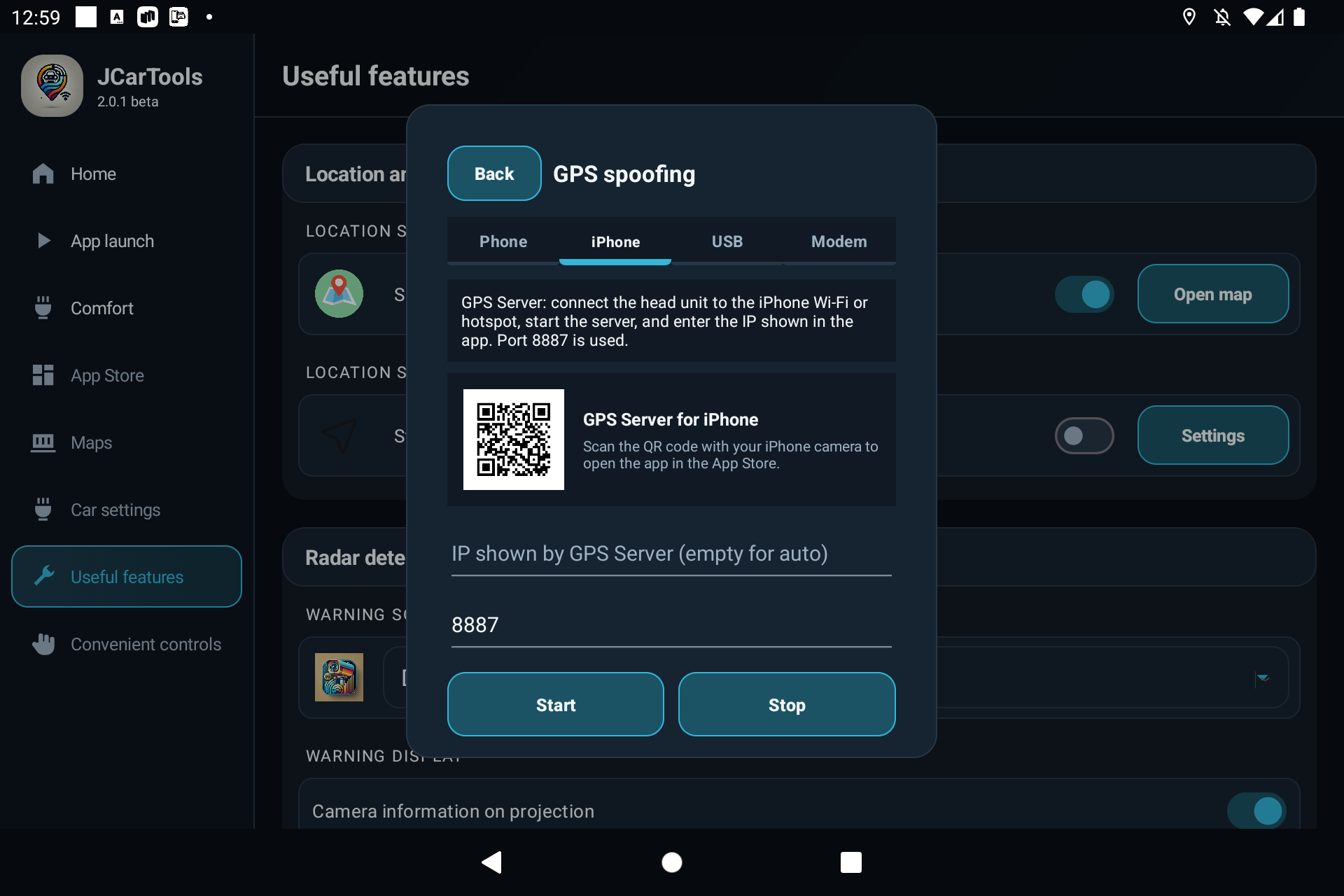
- Open the iPhone tab and scan the QR code with the iPhone camera to install GPS Server from the App Store.
- Enable the iPhone hotspot, or connect the iPhone and head unit to the same Wi‑Fi network.
- Open GPS Server, grant precise location access and start the server.
- Enter the IP address shown by the app in JCarTools. Leave the field empty if automatic detection works.
- Keep port 8887 and select Start.
Review location access and do not swipe GPS Server away from the app switcher. Low Power Mode can restrict prolonged background operation.
Method 3. External USB GPS receiver
The following proven u-blox setup has been moved into this combined guide. The original USB pages remain unchanged.
An incorrect port or baud rate can prevent the receiver from communicating with both the PC and the head unit. Record the original values and make changes one at a time.
1. Connect with u-center
- Install u-center and connect the USB GPS receiver to the computer.
- Select Receiver → Connection, then choose its COM port.
- Set the connection to 115200 baud.
- Open View → Configuration View.
2. Interference and automotive mode
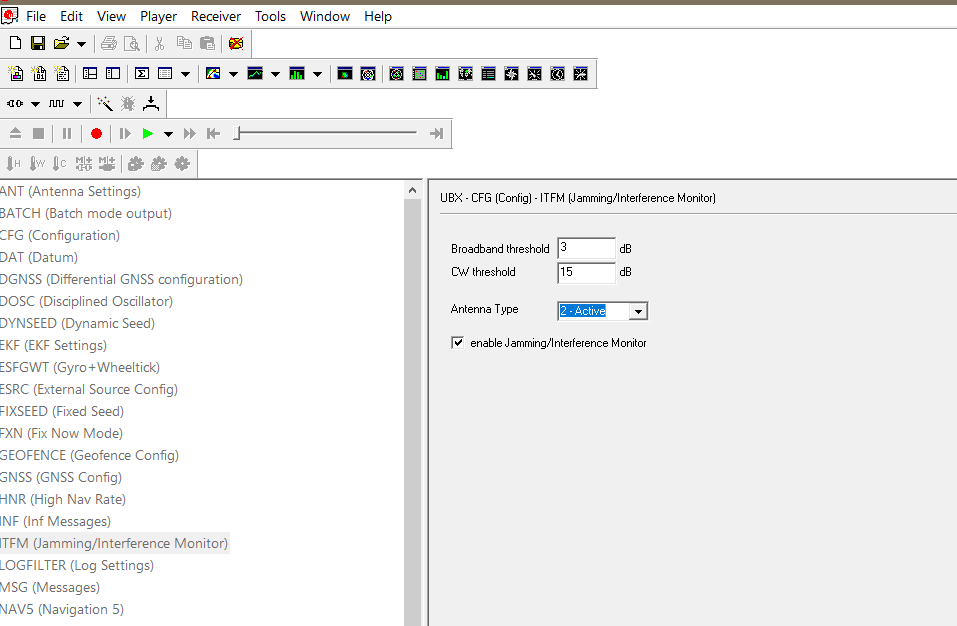
Under ITFM, enable Jamming/Interference Monitor and the active antenna option, then select Send.
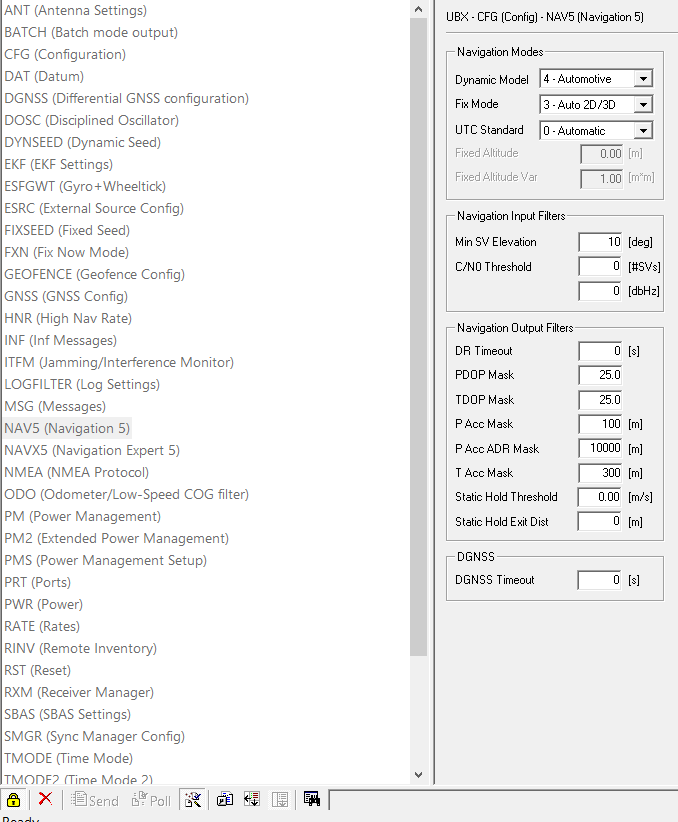
Under NAV5, choose the Automotive dynamic model, set the minimum elevation to 10–15°, and set PDOP and TDOP to 25. Select Send.
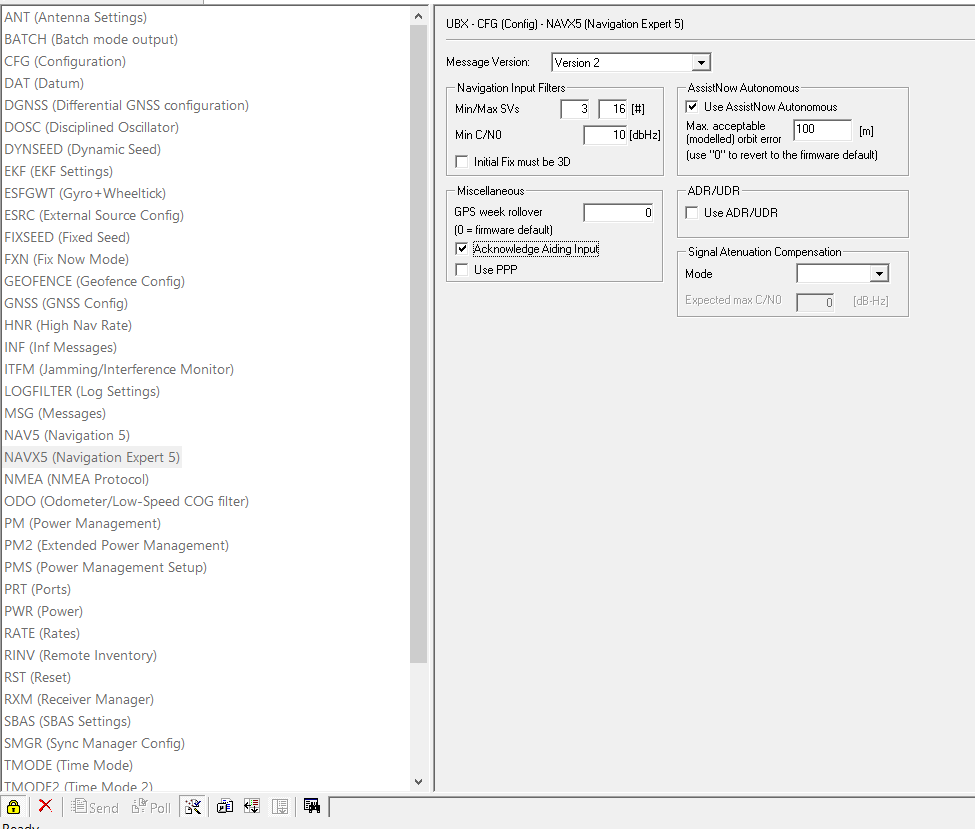
Under NAVX5, set Min C/N0 to 10–15 dBHz, enable AssistNow Autonomous and Acknowledge Aiding Input, then select Send.
3. NMEA format and update rate
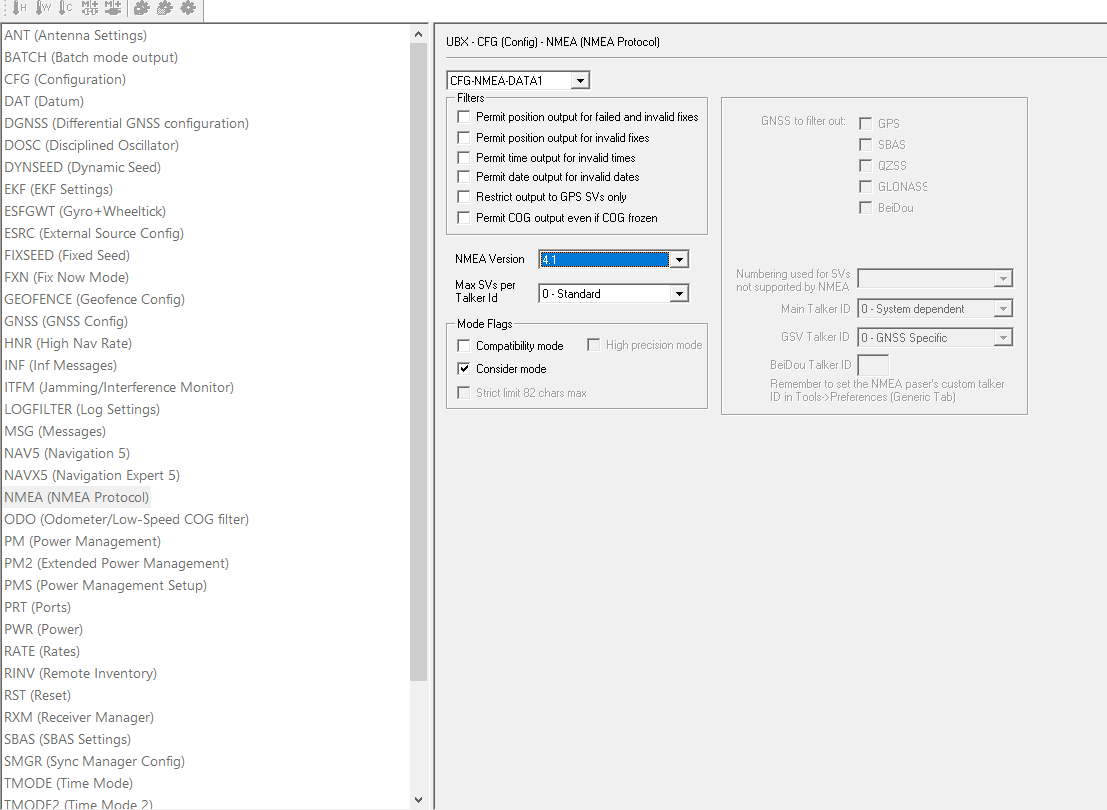
Under NMEA, choose version 4.10 and send the setting.
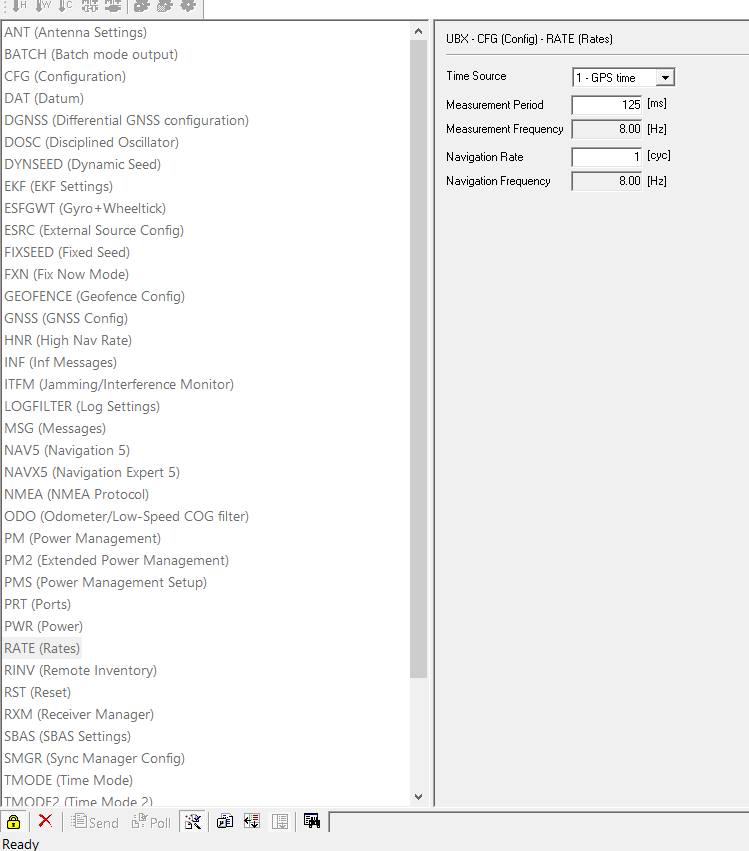
Under RATE, select 5 Hz at 200 ms, 8 Hz at 125 ms, or 10 Hz at 100 ms. Start with 5 or 8 Hz for smooth navigation with a lower device load.
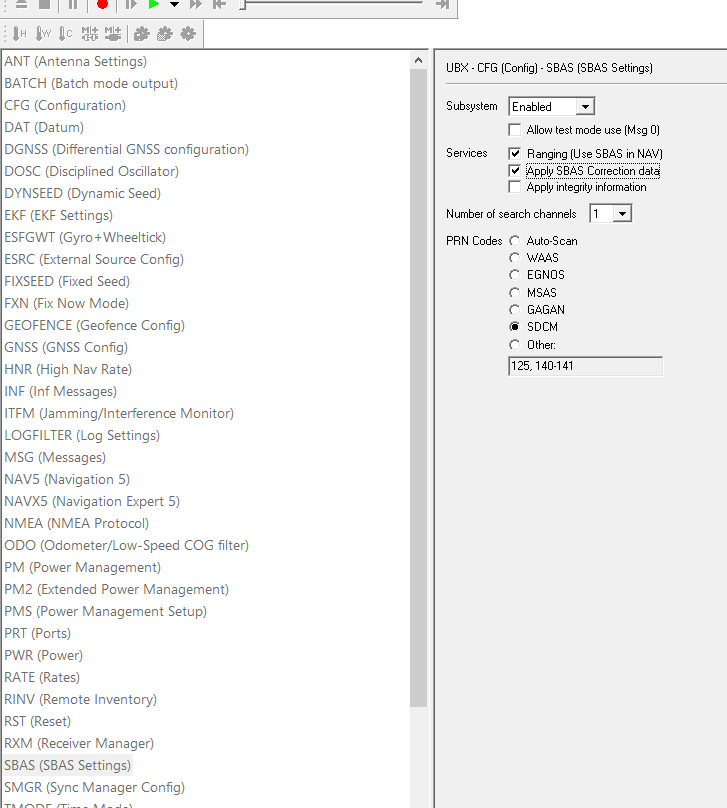
Under SBAS, select the correction system for your region. SDCM is used in Russia.
4. USB port, baud rate and power
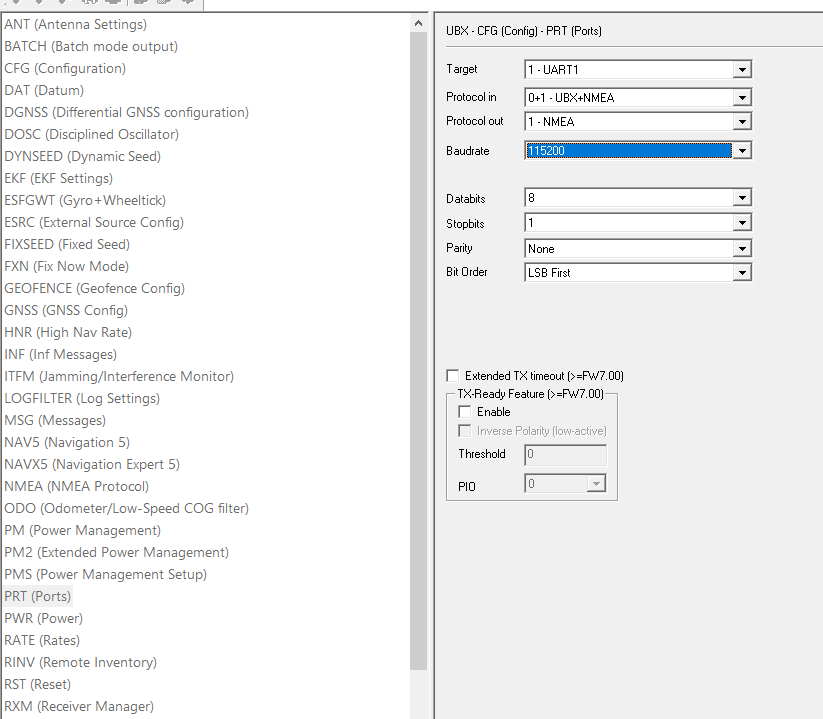
Under PRT → USB, keep UBX + NMEA for input and NMEA only for output.
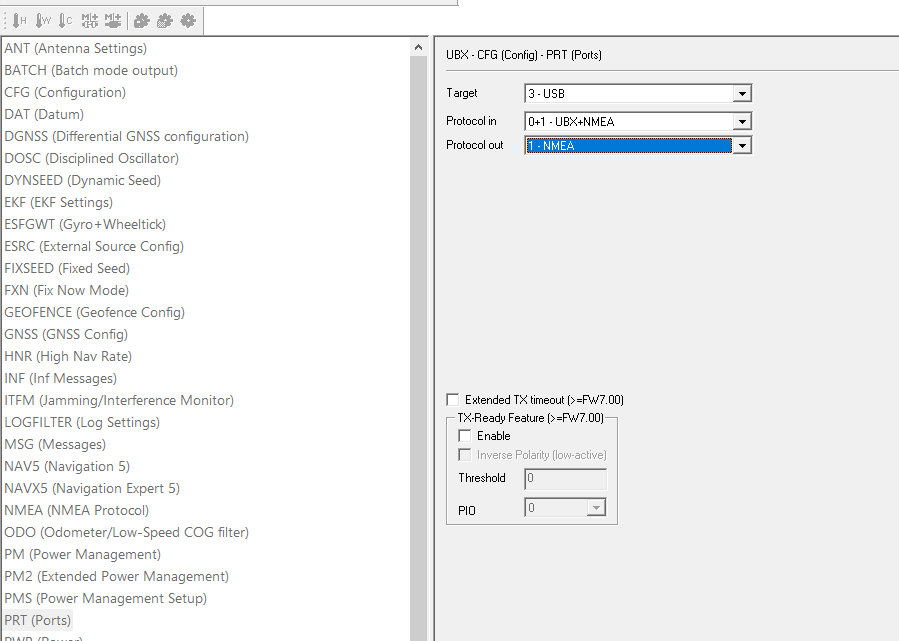
Set UART to 115200 baud. Enter the same value in JCarTools later.
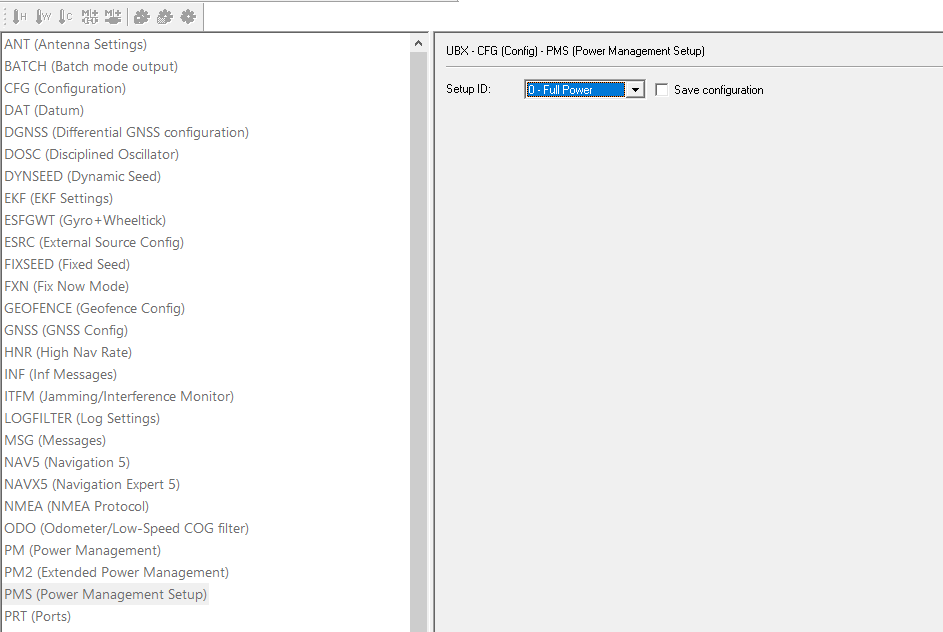
Under PMS, choose Full Power so the receiver does not sleep while driving.
5. Save to Flash and start JCarTools
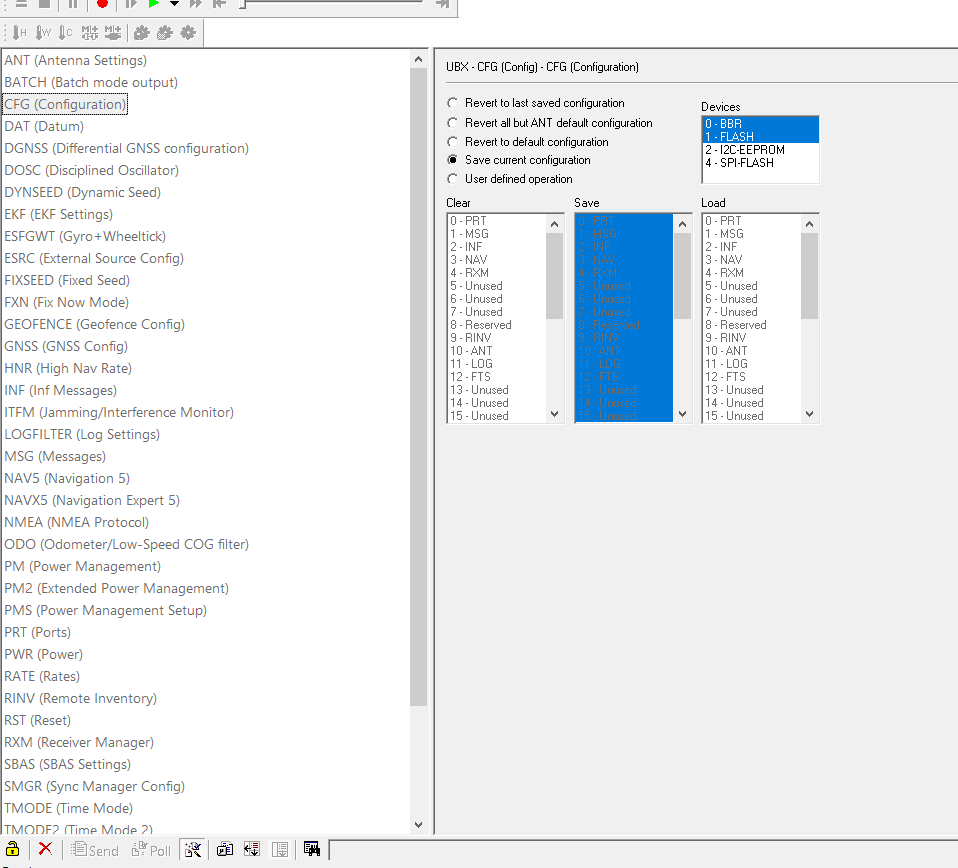
Under CFG, hold Shift, select saving the current configuration to BBR + Flash, and select Send. Without Flash storage, the settings may disappear after power is removed.
- Safely disconnect the receiver from the PC and connect it to the head unit's USB port.
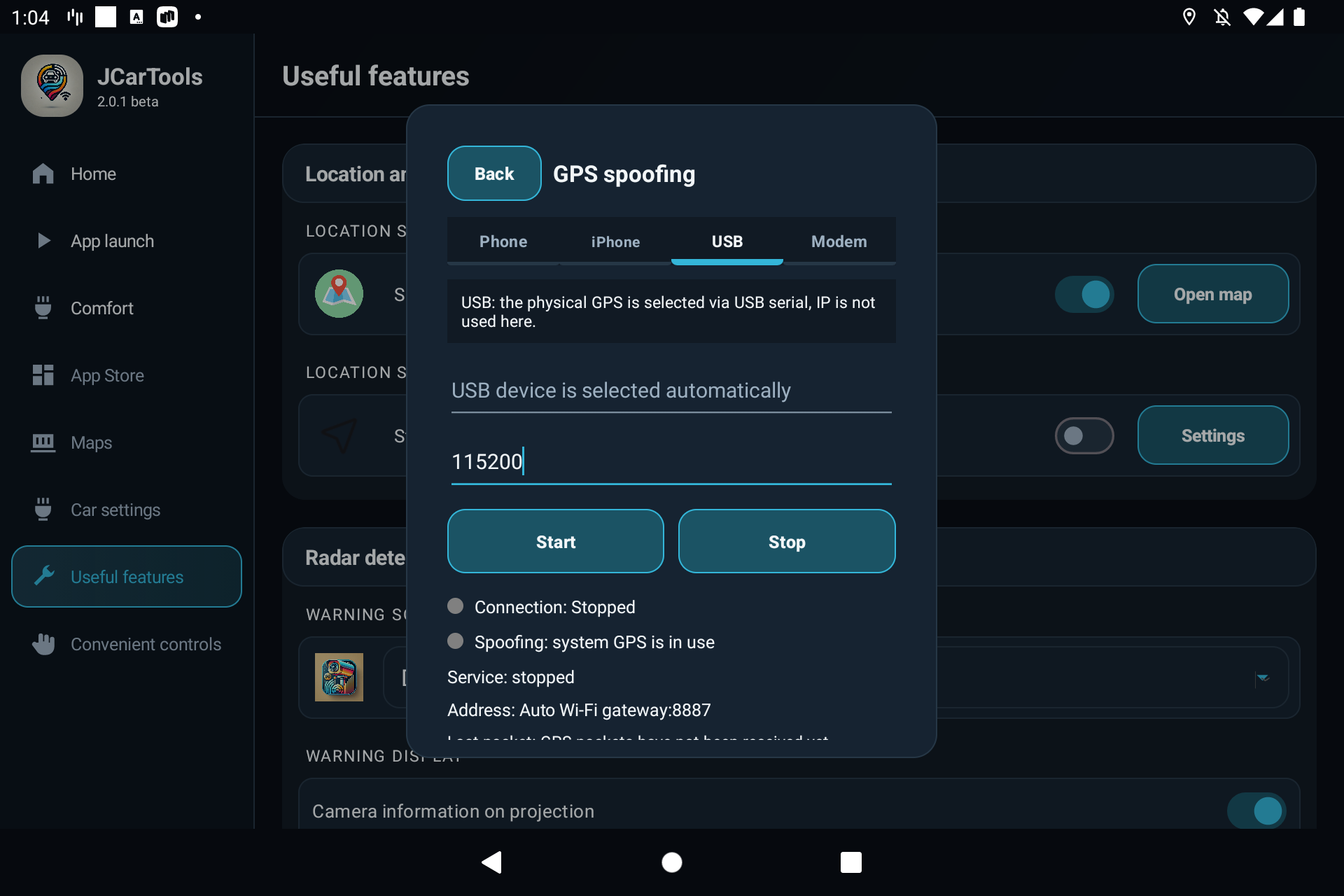
- Open the USB tab in JCarTools. The device is selected automatically.
- Enter 115200, matching u-center.
- Select Start and allow JCarTools to access the USB device.
How to confirm it is working
- Connection reports an active link;
- Spoofing says that external coordinates are applied;
- Last packet keeps updating;
- the vehicle marker moves smoothly in the navigation app;
- autostart restores the selected source after JCarTools restarts.
Do not troubleshoot while driving. First confirm stable packet updates, then check the position inside your navigation app.
The connection works, but spoofing is not applied
Select JCarTools as the mock location app in Android Developer options. Some head units require granting the permission through ADB. Stop and start GPS in JCarTools afterwards.
The Android phone is not found
Check that the head unit is connected to that phone's hotspot, automatic discovery is enabled, and battery optimization is not restricting JCTMobileClient. Pair the devices in Android settings before using Bluetooth.
The iPhone sends no coordinates
Verify the IP shown by GPS Server and port 8887, confirm both devices use the same network, and grant precise location access.
The USB receiver is not detected
Reconnect it, accept the USB permission prompt, and check the cable or adapter. If the device is detected but no packets arrive, compare the baud rate in u-center and JCarTools and verify that NMEA output is enabled on USB.
The first fix takes a long time
A cold receiver can take up to 10 minutes to acquire its first fix outdoors. Software settings cannot remove strong radio interference; reposition the antenna or locate the interference source.
Yandex Navigator shows the wrong place
Make sure two external sources are not running at the same time. Check that Last packet keeps updating, then close and reopen navigation. If JCarTools already displays current coordinates, the map app may still be holding an older Android location.
The marker lags behind or jumps
For a phone, review precise location access, background operation and the connection to the car. For USB, start with a 5–8 Hz update rate, verify NMEA and baud-rate settings, and position the antenna near the glass rather than below metal trim.
Frequently asked questions
Must the phone screen stay on?
No, provided JCTMobileClient has all-the-time location access and permission to run in the background. Review any manufacturer-specific battery restrictions as well.
Can the built-in GPS remain the primary source?
Yes. Enable the phone fallback option so the external source only takes over when the factory GPS position is lost.
Does USB GPS have to use 115200 baud?
No, but the receiver and JCarTools must match. This guide uses 115200 as a tested, consistent value.
Which navigation apps receive the coordinates?
Android apps that use the system location provider, including Yandex Maps, Navigator and Waze. Exact behavior depends on the head-unit firmware.
Why does Yandex Navigator show the wrong location?
Make sure only one source is active, Last packet keeps updating and JCarTools is selected as the Android mock location app. Restart the navigation app after correcting the settings.
Will an external USB GPS work through jamming?
A better antenna position can help with weak reception, but strong interference affects every satellite receiver. USB GPS cannot guarantee protection from jamming or signal spoofing.
What is the difference between GPS, GNSS and GLONASS?
GPS and GLONASS are individual satellite systems. GNSS is the general term that also includes Galileo, BeiDou and others. In everyday use, people often say GPS when they mean satellite navigation as a whole.
Can I toggle GPS spoofing with a gesture?
Yes. Configure the source first, then assign Toggle GPS spoofing to a gesture, floating button, voice command or another convenient trigger.